
Each Memoria Card contains an NFC chip pre-encoded with the URL memoria-cards.fr. To have your MiSTer FPGA launch the corresponding game when you tap a card, you need to install Zaparoo : a small service that connects your NFC reader to your ROM library.
This guide assumes your MiSTer is already set up with your ROMs in place.
- An up-to-date MiSTer FPGA
- A compatible NFC reader (see below)
- Your Memoria Cards
Recommended NFC Readers
| Reader | Notes |
|---|---|
| PN532 USB | Easiest option, plug & play |
| ACR122U | Compatible, LED/beep not functional |
| PN532 Module | UART or I2C, for integrated builds |
The PN532 USB is the most common choice — easy to find on AliExpress or Amazon for under €10.
● Step 1 : Update Your MiSTer
If you use Update All, the recommended method is to enable the MiSTer Extensions repository:
- Launch
update_allfrom your MiSTer Scripts menu - Go to Tools & Scripts
- Enable the MiSTer Extensions repository
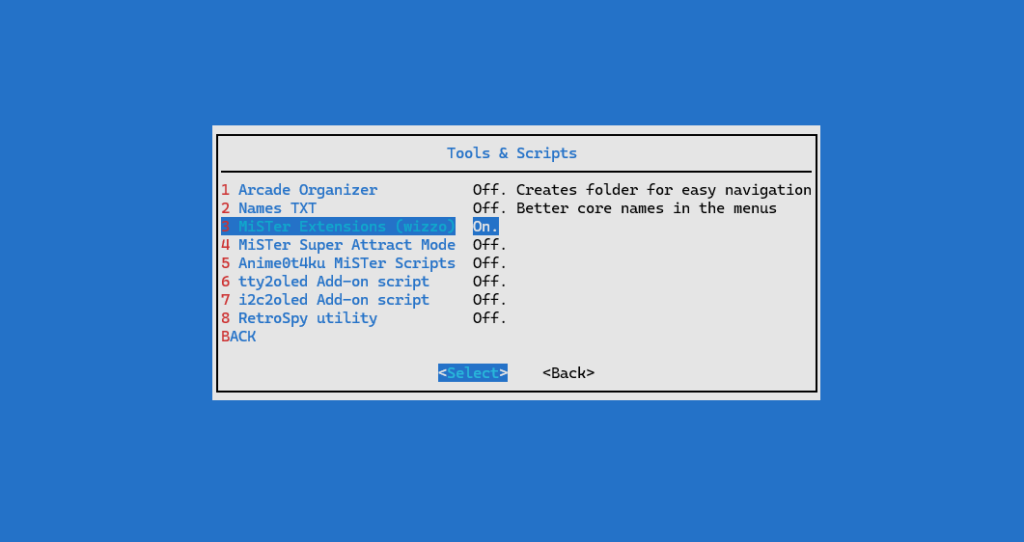
- Run the update again
Don’t have Update All yet? Head to github.com/theypsilon/Update_All_MiSTer to install it.
● Step 2 : Install Zaparoo
Once Update All runs with MiSTer Extensions enabled, Zaparoo installs automatically.
To activate it:
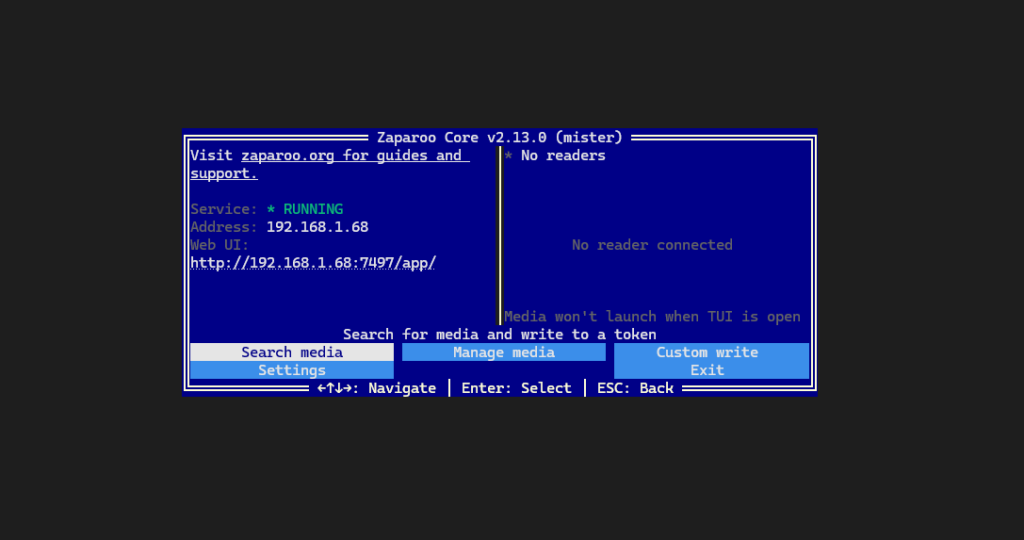
- From the MiSTer main menu, go to Scripts
- Launch zaparoo
- When prompted to enable Zaparoo as a startup service → confirm
Zaparoo will now run in the background every time your MiSTer boots.
Upgrading from TapTo? Delete the old
tapto.shfrom your Scripts folder and make surelinux/user-startup.shno longer references it. Zaparoo is a direct replacement — your existing NFC cards will continue to work.
● Step 3 : Connect the NFC Reader
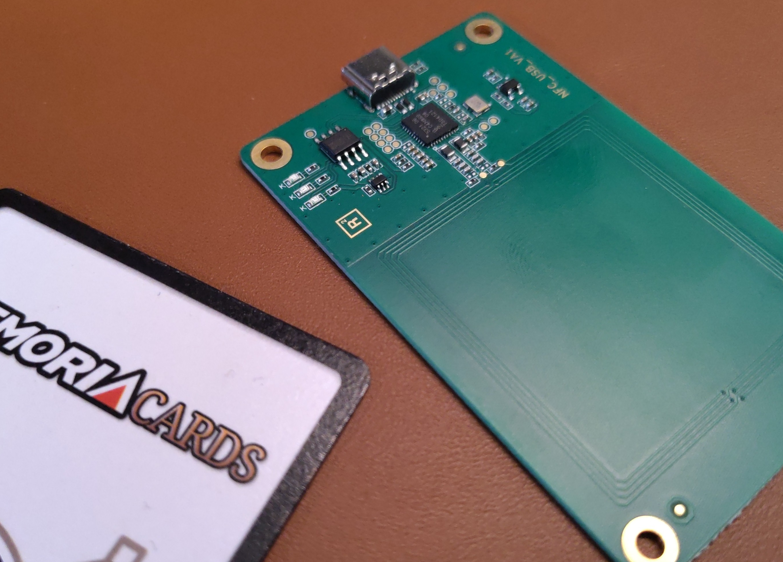
Plug your NFC reader into a USB port on your MiSTer. The PN532 USB is auto-detected, no additional configuration needed.
● Step 4 : Write Your Memoria Card
Each Memoria Card ships pre-encoded with the URL memoriacards.fr. To make it launch a game on your MiSTer, you need to rewrite the chip with the path to your ROM.
Using the Zaparoo App (recommended)
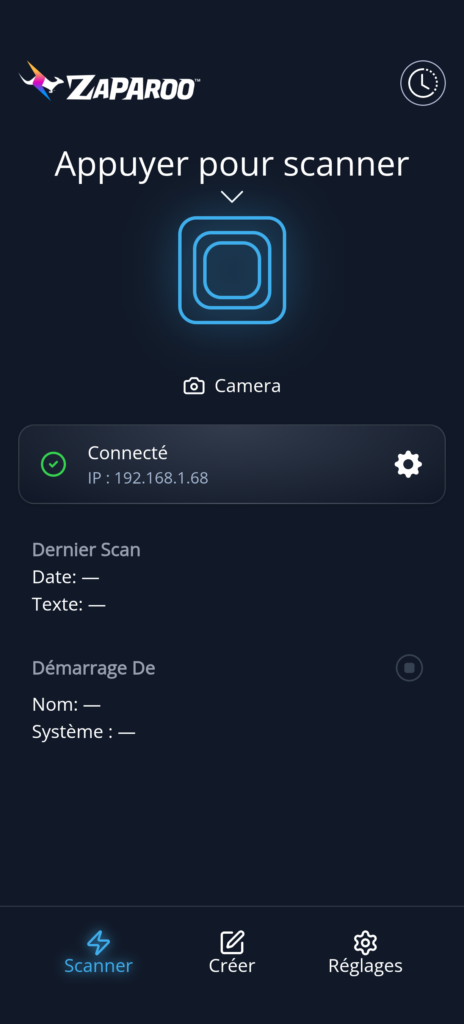
- Download the Zaparoo app on your smartphone (zaparoo.org)
- Connect the app to your MiSTer (same Wi-Fi network)
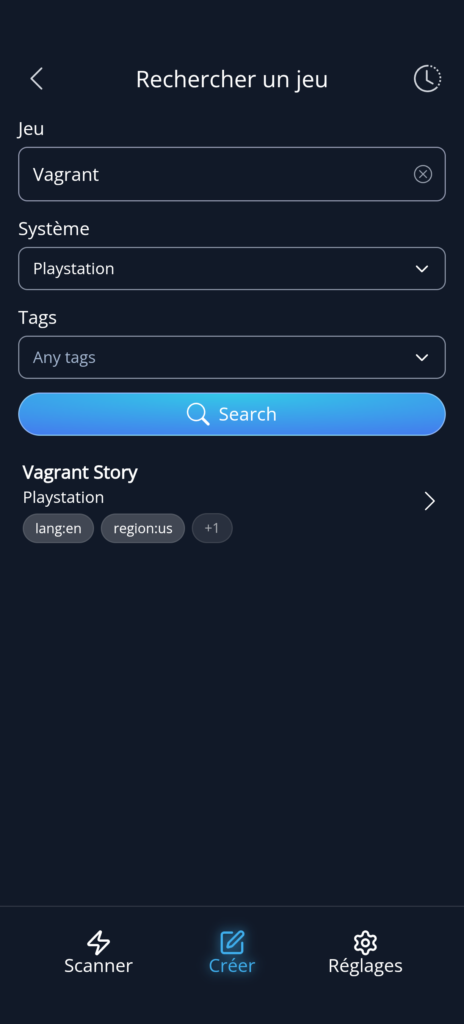
- Scan your game library from the app
- Search for the game matching your card
- Hold the Memoria Card near your phone → the app writes the correct path to the chip
Using NFC Tools (alternative)
If you prefer to encode manually, use the NFC Tools app (Android/iOS) and write a Text record containing the exact path to your ROM, for example:
launch.system:psx
launch.path:/media/fat/games/PSX/Final Fantasy VII.chd
See zaparoo.org/docs/zapscript for the full syntax reference.
● Step 5 : Tap and Play
Hold your Memoria Card over the NFC reader connected to your MiSTer. The game launches automatically.
Troubleshooting
Card is detected but the game doesn’t launch Check that the ROM path is exact . MiSTer is case-sensitive. Verify the filename and extension match exactly.
Zaparoo won’t start Go to Scripts → zaparoo and launch it manually. Make sure the startup option is enabled.
Two games launch at the same time If you migrated from TapTo, remove tapto.sh from Scripts to avoid conflicts.
Beyond the Basics : ZapScript
Zaparoo isn’t limited to launching games. Each card can contain a small script called ZapScript that tells your MiSTer exactly what to do when tapped. Here are a few examples of what’s possible.
Launch a game on a specific core
PSX/Final Fantasy VII.chdThis is the standard use case, the path is enough, Zaparoo detects the system automatically.
Switch MiSTer.ini profile on tap
mister.ini:mister_crt.iniUseful if you have separate config profiles for CRT and HDMI output : one tap swaps the whole configuration.
Change the wallpaper when a game loads
mister.wallpaper:ff7_bg.png||PSX/Final Fantasy VII.chdThe || separator chains commands : Zaparoo sets the wallpaper first, then launches the game.
Open the OSD menu
input.osdA card that just opens the MiSTer menu. Niche, but handy if your controller is out of reach.
Insert a coin in an arcade game
input.coin:1Presses the coin key for player 1. Combine with a game launch for instant one-tap arcade sessions.
ZapLink : dynamic scripts from a URL Instead of a static script, a card can contain a URL. Every time the card is scanned, Zaparoo fetches the current ZapScript at that address and runs it. This means you can update what a card does remotely, without re-encoding the chip.
Zaparoo Works Beyond MiSTer
Zaparoo isn’t MiSTer-exclusive. The same NFC cards work on Batocera, RetroPie, SteamOS, Windows, and more — any platform with a Zaparoo installation. If you own multiple setups, one card can work across all of them once each system is configured.
See the full platform list at zaparoo.org/docs/platforms.
Learn More
- Official documentation: zaparoo.org/docs/platforms/mister
- Community: reddit.com/r/Zaparoo
- Zaparoo Discord: zaparoo.org/discord